Windows XP goes out of support in April, so I’m looking for
guidance on how best to go about replacing it with Windows 7. The
Microsoft site has a tutorial, but is still somewhat baffling, and it
seems fairly time-consuming. Would I be wasting my time pressing on? I
am not keen on replacing an otherwise satisfactory netbook with a
tablet.
Dave Horne
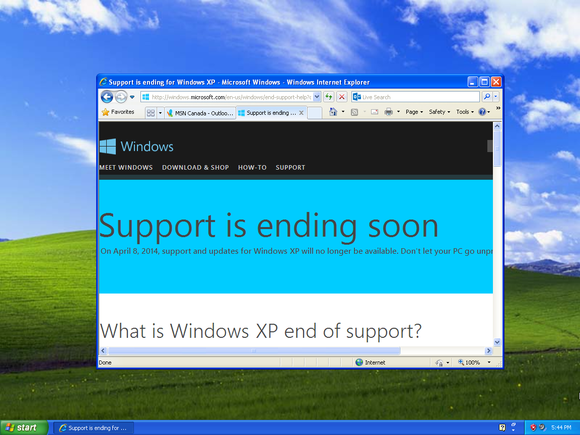
Microsoft will soon stop
releasing security patches for Windows XP, though it will continue to
provide updates for its anti-virus program, Microsoft Security
Essentials. XP will keep on working, but it will be more dangerous to
use it, because malware writers will be able to find security holes in
XP by examining the patches for later versions of Windows. Someone with
safe surfing habits and good backups could keep using XP, though I
wouldn’t recommend it. Less knowledgeable and less vigilant users should
change.
Some netbooks and laptops already include a solution in
the form of a separate Linux-based operating system called Splashtop.
This is installed under a variety of names: Asus ExpressGate, HP
QuickWeb, and so on. It’s not very nice, but you could use Splashtop
online and Windows XP offline.
Picking Windows
The first step with a Windows upgrade is always the same: download and run the
Windows 7 Upgrade Advisor, or the
Windows 8.1 Upgrade Assistant.
These will check your current system for compatibility. Most PCs that
run XP should run Windows 7 or 8, but if you only have 1GB of memory, it
would be worth expanding this to 2GB, if you can.
I’d consider
Windows 8 because it is a better operating system than Windows 7. It’s
more economical in its use of resources, smoother in operation, has
improved security features, and will be upgradeable to the next version
of Windows. Yes, the Start screen works better with touch, but you can
set 8.1 to boot straight to the desktop, and/or install utilities that
make it work more like Windows 7. Examples include
Start8 and
Classic Shell.
You
don’t have to worry about Windows Modern (aka Metro) apps because they
will not run on a netbook’s limited 1024 x 600 pixel screen display.
They need at least 1024 x 768 pixels, unless you use “downscaling” as
explained at
howtogeek.com.
However,
you missed the launch upgrade offers, so Windows 8 could cost you more.
Checking Amazon.co.uk, the best offers at the moment are
32-bit Windows 7 Ultimate on DVD (OEM edition) for £49.99 and the
Windows 8 Pro Upgrade Edition
-- which includes both 32-bit and 64-bit versions -- for £99.99. OEM
editions are provided for system builders or Original Equipment
Manufacturers so the price does not include any support.
Note that
you will need the 32-bit version if your netbook has the usual Intel
Atom processor, though a 64-bit processor and operating system would
obviously be better.
Doing the upgrade
There are two main
problems with upgrading to Windows 7. First, Microsoft only supports
one-step upgrades and (because of Vista) Windows 7 is two steps from XP.
So, you can’t do an “in place” upgrade, only a “clean installation”
that replaces XP completely. You will therefore need to back up all your
data beforehand and re-install all your programs afterwards. Microsoft
provides the
Windows Easy Transfer for Windows XP program to help, but it will still take some time.
Second,
your netbook does not have a built-in DVD drive, so you will have to
find another way to install Windows 7. The simplest is to add an
external DVD drive via a USB port, but if you don’t already own one,
this would be another extra cost. The usual solution is to create a
bootable 4GB or larger USB thumb drive, and use a second PC to copy all
the files from the Windows DVD to that.
It’s a bit tricky to create a bootable USB thumb drive formatted with the Windows NTFS file system. The
TechSpot website has a comprehensive guide, but it’s probably simpler to use one of the utilities designed for the purpose.
WiNToBootic is fast and versatile because you can use a DVD, a hard drive folder, or an ISO disc image as the source. Alternatives include
Rufus,
WinToFlash, and
Windows Bootable Image (WBI) Creator.
Microsoft also offers a free utility: the
Windows 7 USB/DVD download tool.
This assumes you only have one PC, and that you will download an ISO
disc image of Windows 7. If you can access your Windows DVD on a second
PC, you can create an ISO image with CD/DVD burning software, such as
ImgBurn.
Once
you have the Windows 7 files on your USB thumbdrive, change the boot
order in your netbook’s BIOS chip to boot from USB, then install Windows
in the normal way. Bear in mind that if it all goes wrong, you will
need to restore a back-up image of XP from an external hard drive.
Is it worth it? Not really…
Is
it worth all the time and effort on top of the financial outlay? It
depends whether messing about with PCs is a hobby or, if not, how much
you value your time. If you have to restore a lot of data, re-install
software and re-download a dozen or more utilities (Firefox, SlimClean,
FreeFileSync, Dropbox, Kindle etc) then it’s going to take at least a
day.
Either way, the upgrade is not a good financial investment.
Second hand netbooks usually fetch from £25 to £100 on eBay.co.uk, and
even an immaculate, year-old
Asus Eee PC X101CH
only fetched £102 this week. There are thousands of netbooks sloshing
around, and many of them go by without attracting any bids.
If you
want to continue using a netbook, I think you have two rational
options: either run a free Linux such as Lubuntu -- which will still
take time to install and learn, and won’t run your old software -- or
sell it and buy a second hand netbook running Windows 7 or Windows 7
Starter. This is not the full version, but it does the job.
Unfortunately,
netbooks provide a very limited computing experience compared to light
Windows 7 laptops and Windows 8 hybrids. For example, you could get a
brand new “netbook” such as the
Asus X102BA for £276.18.
Admittedly it has a very slow 1.0GHz AMD A4-1200 processor, but
compared with your current machine, it has more memory (4GB), a bigger
hard drive (500GB), faster comms (USB3), better graphics (Radeon
HD8180), better screen resolution (1366 x 768 pixels), a touch-screen,
64-bit Windows 8, and a free copy of Microsoft Office 2013 Home and
Student worth £115. It will also save you a lot of time by booting,
hibernating, and shutting down faster, and it should load web pages
noticeably faster. There are many similar machines around, including
hybrids with detachable tablet screens.
It’s good to make things
last, up to a point, but sometimes they become obsolete. A new
mini-laptop like the Asus X102BA is cheaper than many tablets and
smartphones, and should last much longer, so it will provide better
value in the long run.




 Email
Email